
 Christoper Macaranas
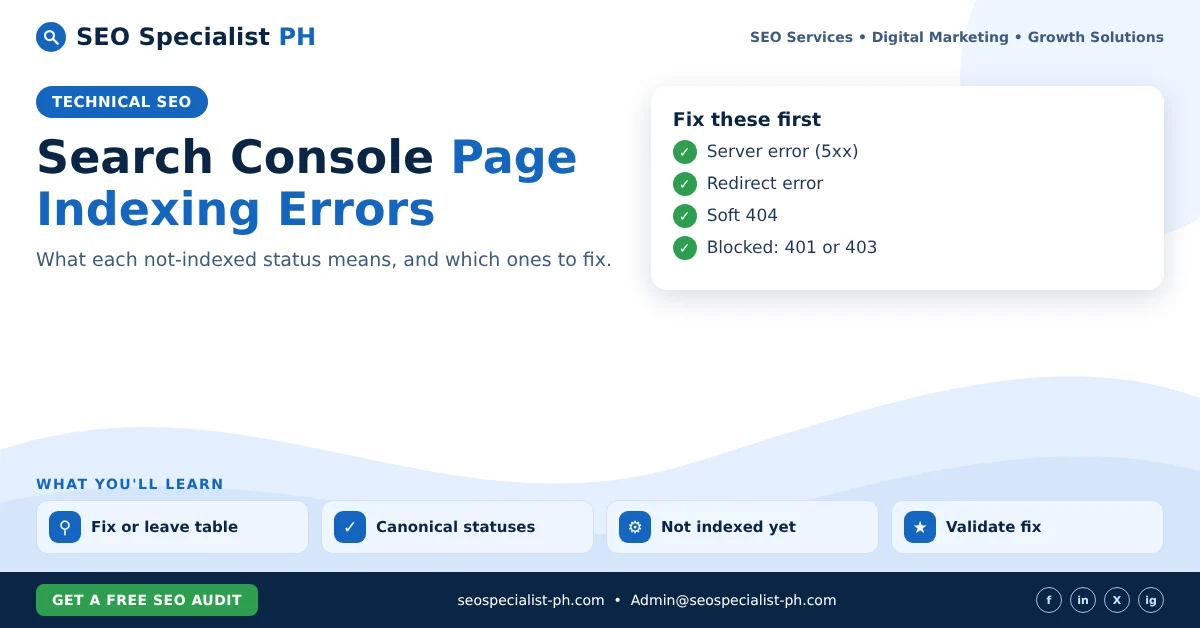
Where to find the Page indexing report
In Search Console, open Indexing > Pages. The chart shows how many known URLs are indexed and not indexed. Below it, the “Why pages aren’t indexed” table groups the not-indexed URLs by reason. Click a reason to see example URLs.
Two points from Google’s Page indexing report help are worth keeping in mind before you start:
- Not every URL should be indexed. Google says not to expect every URL on your site to be indexed. Duplicates and pages without meaningful content are often left out on purpose.
- Focus on the pages that matter. Your goal is to make sure your important pages are indexed, not to reach zero in the not-indexed column.
Google Search Console page indexing errors: fix or leave?
Use this table to sort each status quickly. “Fix” means it usually signals a problem when the URL is a page you want in Google.
| Status | What it means | Usually |
|---|---|---|
| Server error (5xx) | Your server returned an error when Google crawled | Fix |
| Redirect error | A redirect loop, a chain that is too long, or a bad target | Fix |
| Soft 404 | The page looks empty or “not found” but returns 200 | Fix |
| Blocked due to access forbidden (403) | The server refused Googlebot | Fix if the page should rank |
| Blocked due to unauthorized request (401) | The page needs a login | Fix only if it should be public |
| Not found (404) | The URL does not exist | Leave, or redirect if the page moved |
| Excluded by “noindex” tag | You told Google not to index it | Leave if intended |
| Blocked by robots.txt | Your robots.txt stops crawling | Leave if intended |
| Page with redirect | The URL redirects elsewhere | Leave |
| Alternate page with proper canonical tag | It points to another canonical page | Leave |
| Duplicate without user-selected canonical | Google picked another URL as canonical | Usually leave |
| Duplicate, Google chose different canonical than user | Google ignored your canonical | Review |
| Discovered – currently not indexed | Google knows the URL but has not crawled it yet | Wait, then review |
| Crawled – currently not indexed | Google crawled it but chose not to index it yet | Review content |
Statuses that need fixing
Server error (5xx)
Google could not load the page because your server failed. Check whether your hosting was down or overloaded. The Crawl Stats report under Settings shows host availability. Repeated 5xx errors on many URLs often point to hosting limits, a firewall or a plugin conflict.
Redirect error
The redirect is broken. Common causes are loops, long chains, a URL that grows too long, or a redirect to an empty or invalid address. On WordPress sites this often happens after a migration, a change of permalinks or a conflict between a redirect plugin and server rules. Point each old URL straight to its final page in one step.
Soft 404
The page returns a normal 200 status but looks like an error page to Google. Thin category pages, empty search results and “out of stock” templates are typical examples. If the page is really gone, return a proper 404 or 410. If it is a real page, add useful content.
401 and 403
Googlebot never logs in. A 401 means the page asks for credentials. A 403 means the server refused the request, which Google says is likely a server-side error. Security plugins and firewalls sometimes block Googlebot by mistake. Fix these only for pages that should be public.
Statuses that are usually fine
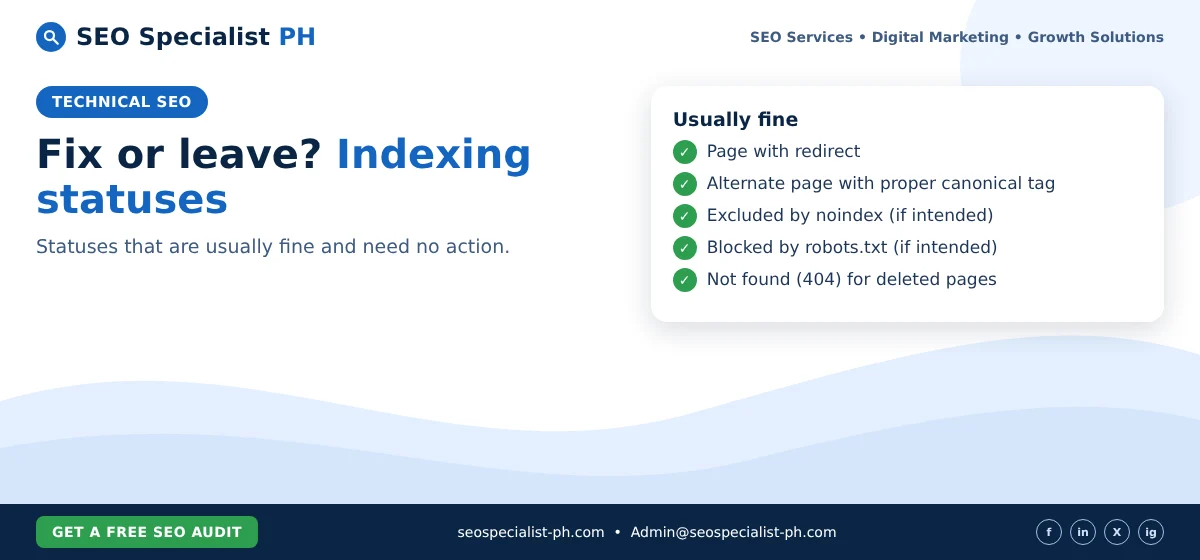
Page with redirect and Alternate page with proper canonical tag
These are expected. The redirecting URL or the alternate version is not indexed, while the target or canonical page can be. No action is needed.
Excluded by noindex and Blocked by robots.txt
These reflect your own instructions. Check the list once to make sure no important page is included by mistake. A staging setting left on after launch is a classic cause. Note that robots.txt stops crawling, not indexing. To keep a page out of Google, allow crawling and use noindex instead.
Not found (404)
A 404 for a deleted page with no replacement is normal. If the page moved, add a 301 redirect to the new URL.
Duplicate without user-selected canonical
Google found near-identical pages and chose one to index. This is working as intended. If Google chose the wrong version, add a canonical tag to the page you prefer.
Statuses to review
Duplicate, Google chose different canonical than user
You declared one canonical, but Google picked another. Use the URL Inspection tool to see which URL Google chose. Then check whether the pages are truly duplicates. Often they are, and Google’s choice is fine. If they should be separate, make the content clearly different.
Discovered – currently not indexed
Google knows the URL exists but has not crawled it yet. Google says this is often to avoid overloading your site, and the crawl is rescheduled. For a new site, waiting is normal. If thousands of URLs sit here for months, look at server speed, internal links and low-value URLs such as filters and tags.
Crawled – currently not indexed
Google crawled the page and decided not to index it for now. Google says there is no need to resubmit the URL. When important pages stay here, the cause is usually the page itself. Common reasons are thin or duplicated content, weak internal links, or a page that adds little beyond what is already indexed. Improve the page and link to it from relevant pages on your site.
How to validate a fix
After fixing every instance of an issue, open its details page and click Validate fix. Google first checks a sample of URLs, then rechecks the rest. Google says validation typically takes up to about two weeks. Do not click the button again while a validation is running. If validation fails, fix the remaining URLs and start a new one.
A simple monthly routine
- Open the Page indexing report and note the not-indexed reasons.
- Look at the “Fix” statuses first: 5xx, redirect errors, soft 404 and blocked pages.
- Check that no important page sits under noindex, robots.txt or a 404.
- Inspect a few “Crawled – currently not indexed” URLs and decide whether to improve, merge or remove them.
- Validate fixes and record the date.
Most indexing problems come from a small number of site-wide causes. Fix the cause once and many URLs clear together. For more on how crawling and indexing fit into a wider audit, see our guide to technical SEO optimization and our on-page SEO optimization checklist. If you would like a second pair of eyes on your report, SEO Specialist PH offers a free SEO audit tool to get started.
