
 Christoper Macaranas
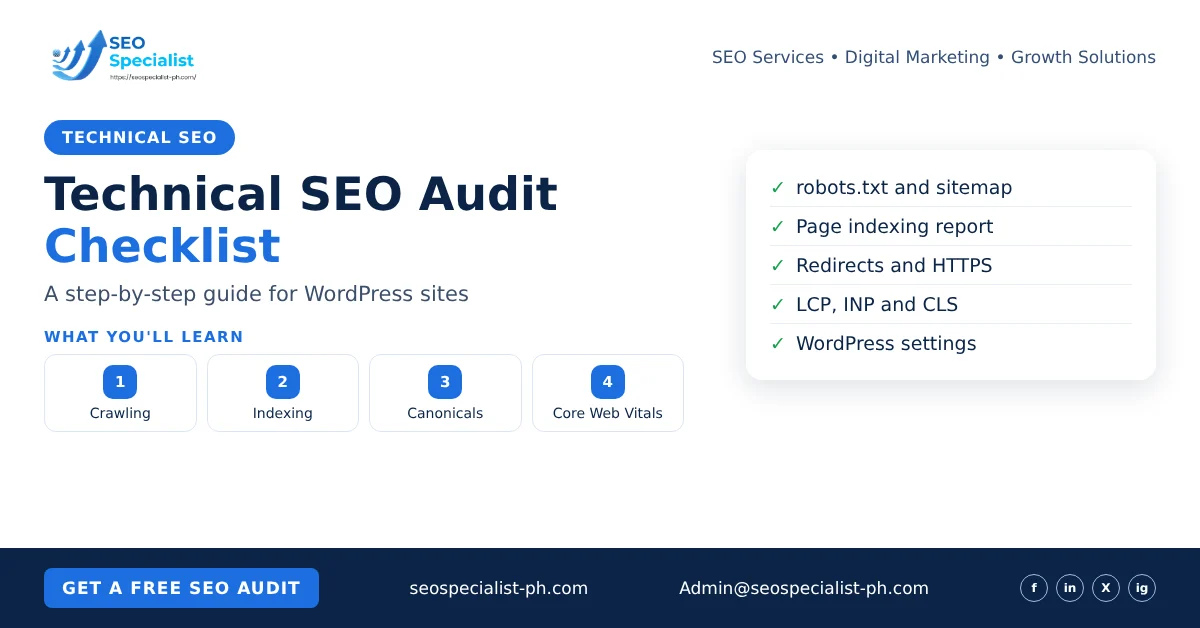
You do not need to fix everything at once. Work through the steps, note what you find, and then sort the fixes by impact and effort. The last section shows how.
What a technical SEO audit checks (and what it does not)
A technical audit looks at how your website works for search engines. It asks a few plain questions. Can Google reach your pages? Can it index the ones that matter? Does it pick the right version of each page? Do the pages load fast and work on a phone?
It does not judge your content or your backlinks. Thin articles, weak titles and missing topics belong to an on-page review. Our guide to on-page SEO optimization covers that side. If you want the background first, read our explainer on technical SEO optimization. This article is the hands-on process.
Tools you need for a technical SEO audit checklist
You can complete most of this audit without paid software:
- Google Search Console. It shows indexing status, sitemap errors, Core Web Vitals field data and manual actions.
- PageSpeed Insights. It tests one URL at a time and shows real-user data when Google has enough of it.
- A crawler. Screaming Frog has a free mode for small sites. It lists status codes, redirects, canonicals, titles and internal links.
- Your WordPress dashboard. You will check permalinks, plugins, caching and your SEO plugin.
Our free SEO audit tool gives you a quick first scan. Then use the steps below to go deeper.
Step 1: Crawlability and robots.txt
Open yourdomain.com/robots.txt in a browser. Check that it does not block pages you want in search. A single stray Disallow: / line can hide a whole site.
Keep these rules from Google’s documentation in mind:
- Google reads only four fields:
user-agent,allow,disallowandsitemap. It does not supportcrawl-delay, so that line does nothing for Googlebot. - Google reads only the first 500 KiB of the file.
- If robots.txt returns a server error for a long time, crawling can stop.
Source: How Google interprets the robots.txt specification.
Do not use robots.txt to remove pages from the index. Google may still index a blocked URL without its content. Use a noindex tag on the page instead, and leave the page crawlable so Google can see the tag.
Next, run your crawler from the homepage. Look for pages it cannot reach through links. Pages with no internal links pointing to them are orphans. Google may find them through the sitemap, but they get little support.
Step 2: Indexing in Search Console
Open Indexing > Pages in Search Console. The report splits your URLs into indexed and not indexed, with a reason for each group. Common reasons include:
- URL marked “noindex”
- Blocked by robots.txt
- Soft 404 and Not found (404)
- Page with redirect
- Duplicate without user-selected canonical
- Crawled – currently not indexed
- Discovered – currently not indexed
Google says not every URL needs to be indexed. Non-indexed URLs can be fine. What matters is that your key pages are indexed and that each excluded URL has a clear reason. Source: Page indexing report.
So start with your important pages. Check your service pages, main blog posts and contact page. Paste each one into the URL Inspection tool. It shows whether the URL is on Google, the canonical Google chose and the last crawl date. After a fix, use Test Live URL and then Request indexing. Source: Inspect and troubleshoot a single page.
Then check Indexing > Sitemaps. Your sitemap should list only canonical URLs that return 200. Google ignores the priority and changefreq tags. It uses lastmod only when the dates are accurate. One sitemap file can hold up to 50,000 URLs or 50 MB uncompressed. Source: Build and submit a sitemap.
Step 3: Canonicals, redirects and HTTPS
Every page should have one clear address. Test the four versions of your homepage: http, https, with www and without www. Three of them should redirect to the fourth in one hop.
In your crawl, filter for:
- Redirect chains. A to B to C wastes crawling and slows visitors. Point A straight to C.
- Internal links to redirected URLs. Update the links to the final address.
- Canonical tags. Each indexable page should point to itself. Canonicals should never point to a redirected, noindexed or 404 page.
- Mixed content. HTTPS pages should not load images or scripts over plain HTTP.
Google treats redirects and rel="canonical" as strong signals and sitemaps as a weak one. It also says not to use robots.txt or the URL removal tool to choose a canonical. Source: How to specify a canonical URL.
Step 4: Core Web Vitals and page speed
Open Experience > Core Web Vitals in Search Console. This report uses field data from real Chrome users. Google measures each metric at the 75th percentile of page views. These are the “good” targets:
| Metric | What it measures | Good | Poor |
|---|---|---|---|
| LCP | Loading of the main content | 2.5 s or less | Over 4 s |
| INP | Response to clicks and taps | 200 ms or less | Over 500 ms |
| CLS | Unexpected layout shifts | 0.1 or less | Over 0.25 |
Source: How the Core Web Vitals metrics thresholds were defined.
Fix the page templates that fail, not single URLs. On most small sites, a few changes help the most. Compress and resize images. Set width and height on images. Load fewer third-party scripts. Use good hosting with page caching.
Test on a phone as well, over mobile data. Pages that feel fast on office Wi-Fi can feel slow on a busy mobile connection.
Step 5: Site structure and internal links
Your most important pages should be close to the homepage. A visitor should reach them in about three clicks. Check your crawl for click depth.
Then review your internal links:
- Do your service pages get links from related blog posts?
- Do anchor texts describe the target page, rather than “click here”?
- Are there broken internal links (404)?
- Do pages on the same topic link to each other?
Clear structure helps visitors and search engines see which pages matter most. It is also the cheapest fix on this list.
Step 6: Structured data and mobile
Check the structured data your site outputs. Use the Rich Results Test for single pages. Then check the Enhancements reports in Search Console for errors. Most WordPress SEO plugins add Article, Breadcrumb and Organization markup for you. Avoid adding the same schema twice through a second plugin.
For mobile, open your key pages on a real phone. Check that text is readable without zooming and that buttons are easy to tap. Make sure pop-ups do not cover the main content.
WordPress-specific checks
WordPress sites share a set of common problems. Add these checks to your audit:
- Search engine visibility. Under Settings > Reading, make sure “Discourage search engines” is not ticked. This is a common cause of a site vanishing after launch.
- Permalinks. Use a readable structure, such as
/%category%/%postname%/or/%postname%/. Changing it on a live site needs redirects. - SEO plugin settings. In Yoast or Rank Math, check which post types and taxonomies are set to noindex. Thin tag and author archives are often better left out of the index.
- Attachment pages. Make sure media attachment URLs redirect to the file or the parent post.
- Plugins. Remove plugins you no longer use. Each one adds code and possible security issues.
- Caching and image plugins. Confirm that page caching works and that images are served in modern formats.
- Updates and backups. Keep WordPress, the theme and plugins updated, and test changes on a staging copy first.
If your theme or plugins cause the problems, our WordPress development services can help with the fixes.
How to prioritise the fixes
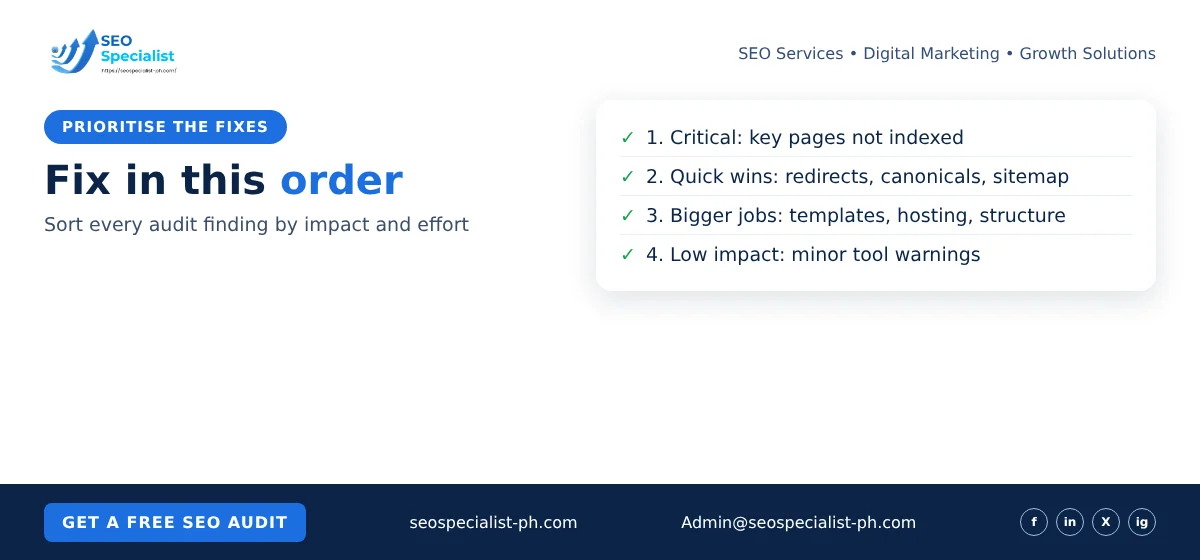
A long list of issues is not a plan. Sort each finding into one of four groups:
- Critical. Key pages that are not indexed, blocked by robots.txt or set to noindex by mistake. Fix these first.
- High impact, low effort. Redirect chains, broken internal links, wrong canonicals and sitemap errors.
- High impact, more effort. Core Web Vitals problems in templates, hosting changes and site structure.
- Low impact. Minor warnings from tools that do not affect your key pages.
Avoid advice that no longer applies. Google retired the URL Parameters tool in Search Console in April 2022. It said its systems now handle parameters well on their own. Source: Search Engine Land. As noted above, crawl-delay does not affect Googlebot either.
Repeat the technical SEO audit checklist every few months, and after any redesign, migration or major plugin change.
FAQ
How often should I run a technical SEO audit?
Run a full audit every three to six months for a small site. Also run one after a redesign, a domain or URL change, or a new theme. Check the Search Console indexing report monthly in between.
Can I do a technical SEO audit myself?
Yes, for most small sites. Search Console, PageSpeed Insights and a free crawler cover the steps above. Get help when fixes need code changes, server changes or a migration plan.
Is the free tool enough on its own?
A scan is a good first step, but it cannot see everything. Search Console data, such as indexing reasons and field Core Web Vitals, comes only from your own account.
If you want a second pair of eyes on your results, SEO Specialist PH offers technical audits for small and growing sites. You can book an SEO consultation to go through your findings and agree on a fix list.
